
How to Use Kantime EVV
Download KanTime Mobile app
Get Login information from agency
Login!
Once logged in to the app:
Locate the three lines icon on the top left.
Find CLIENTS
Search for your client in the top Search bar
Once your client pops up, click on their name.
The blue bar will allow you to select different parts of the client’s chart.
Swipe over all the way to the right and select SCHEDULE.
Select the date of your visit
Click CHECK-IN
Begin visit!
Then, return to the three lines icon at the top left. At the bottom, you will hit the SYNC button.
Complete your note in your tablet, phone, laptop in the online version
When the visit is complete, go back to the visit and click on the CLIENT/RP SIGNATURE NOT CAPTURED
This opens up the Client Signature box. Have the client sign and then SAVE.
Click CHECK OUT
Following Check Out, proceed to the three lines icon again and hit SYNC again.
This completes the entire process.
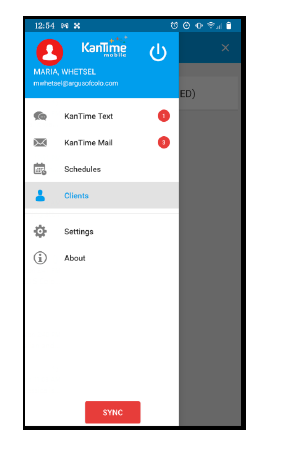
STEP #2: FIND CLIENTS
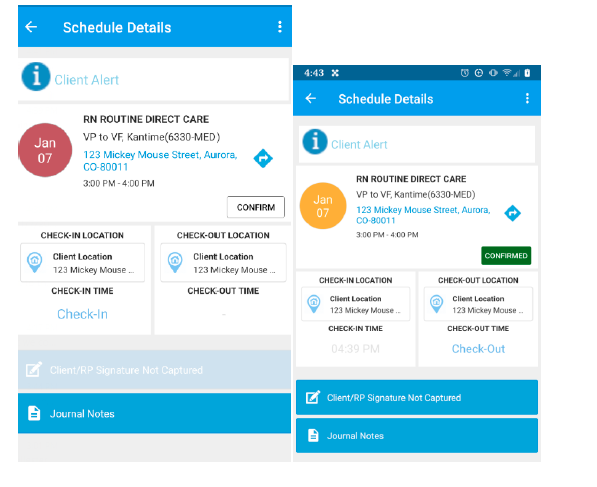
STEPS #6-8: SCHEDULE VISIT DATE & CLICK CHECK-IN
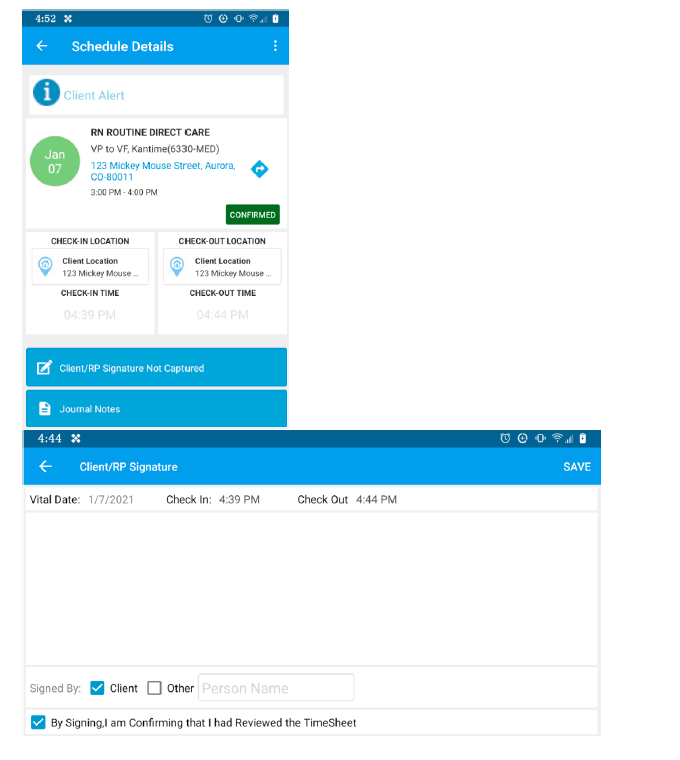
STEPS #12-13: GET SIGNATURE AND CHECK-OUT.
